

Guidelines
How can Research Offices review applications?
Important: If the user experiences login issues while we continue improving the application portal, the Research Office may access the same link using an incognito/private browsing window.
Note: RO can only be invited by the PI through the SEA DREAM Application portal.
Registration and Log In
Step 1
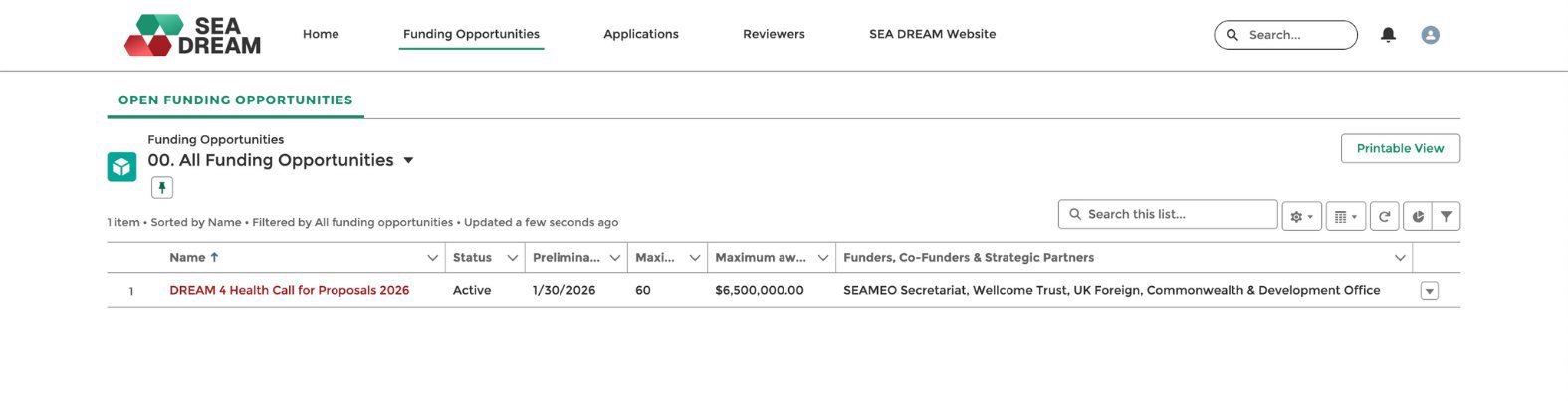
Open the email inbox and click the email with the subject “Invitation to Sign Up for SEA DREAM Application Portal.” Click the Sign up link in the email.
Note: The email address on this screen is fixed to the email the Principal Investigator (PI) used to invite you, and the Role is fixed to “Research Office”.
Step 2
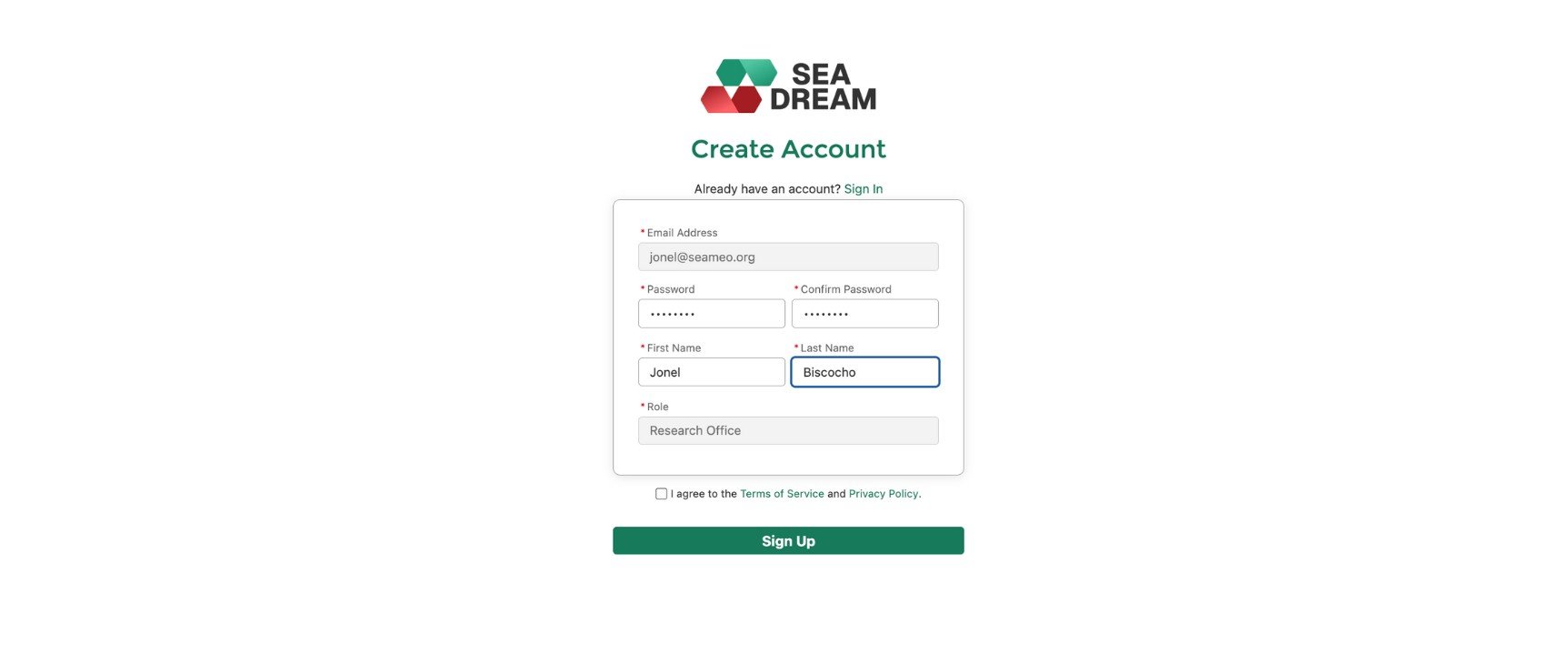
Once the Registration page is opened, fill in the necessary details.
- Email (will be used as username)
- Password
- Re-confirm password
To register the user account, you must check “I agree to the Terms of Service and Privacy Policy.” Lastly click the “Sign Up” button.
Step 3.
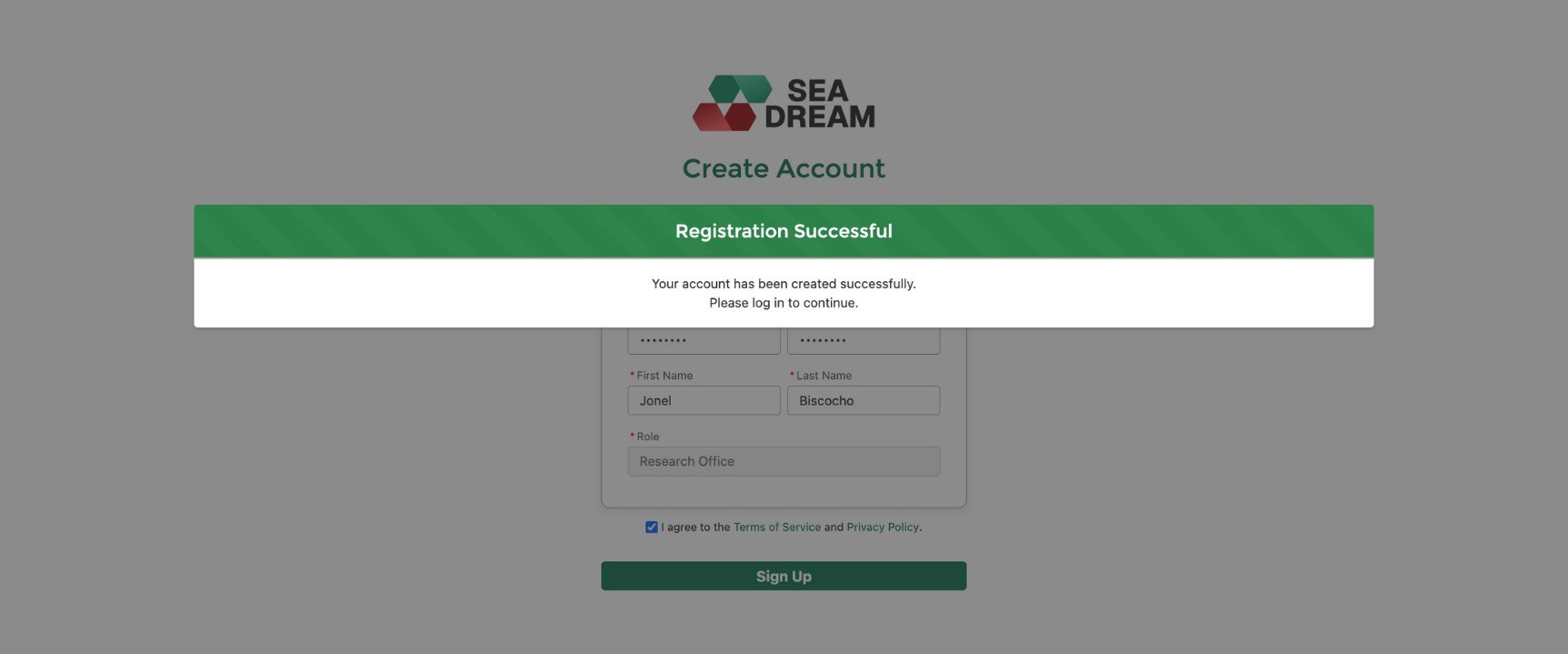
Once you complete the registration, there will be a pop-up message.
Step 4.
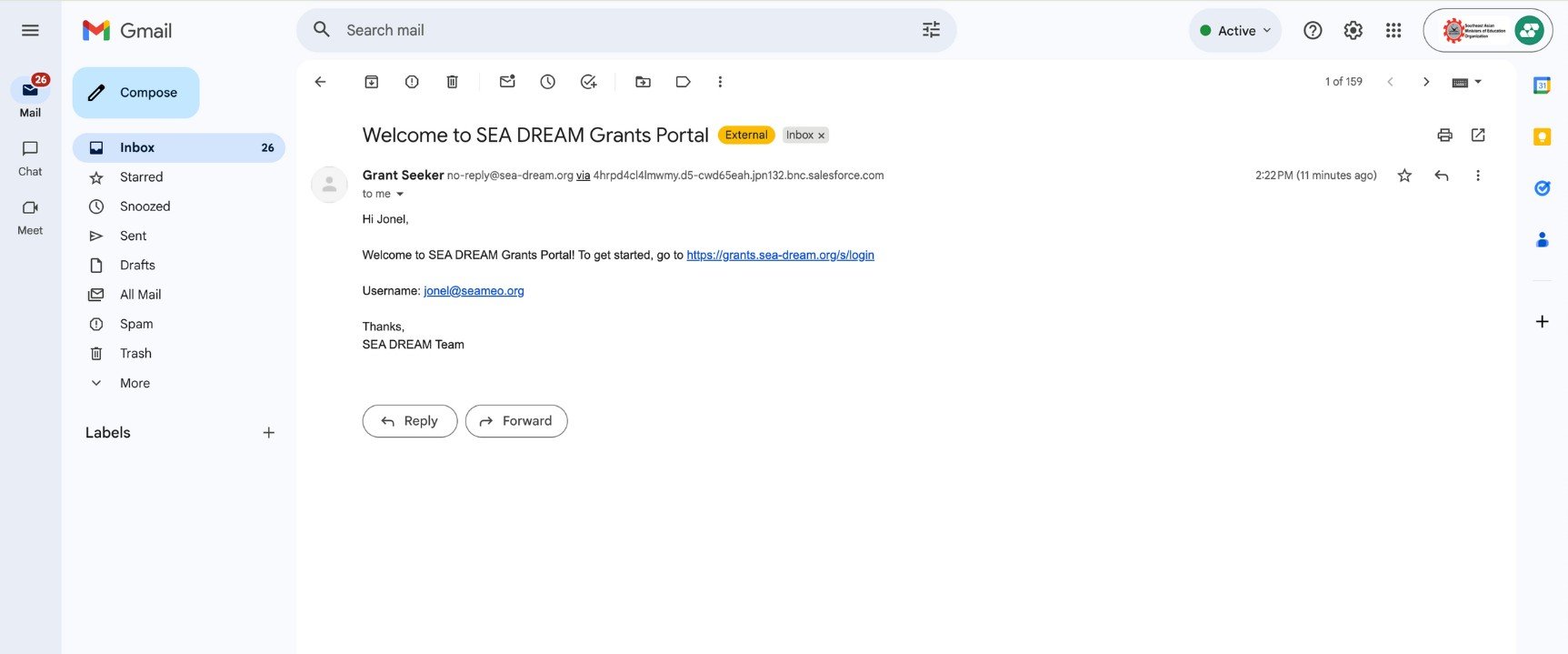
A welcome email will be sent to your inbox.
Step 5.
To login, follow the steps below:
From https://sea-dream.org/ user click tab "Research Funding”. Click the DREAM 4 Health Call for Proposals 2026. Inside, click the “Apply here!”
Or
Alternatively, you can click the log in link in the welcome email.
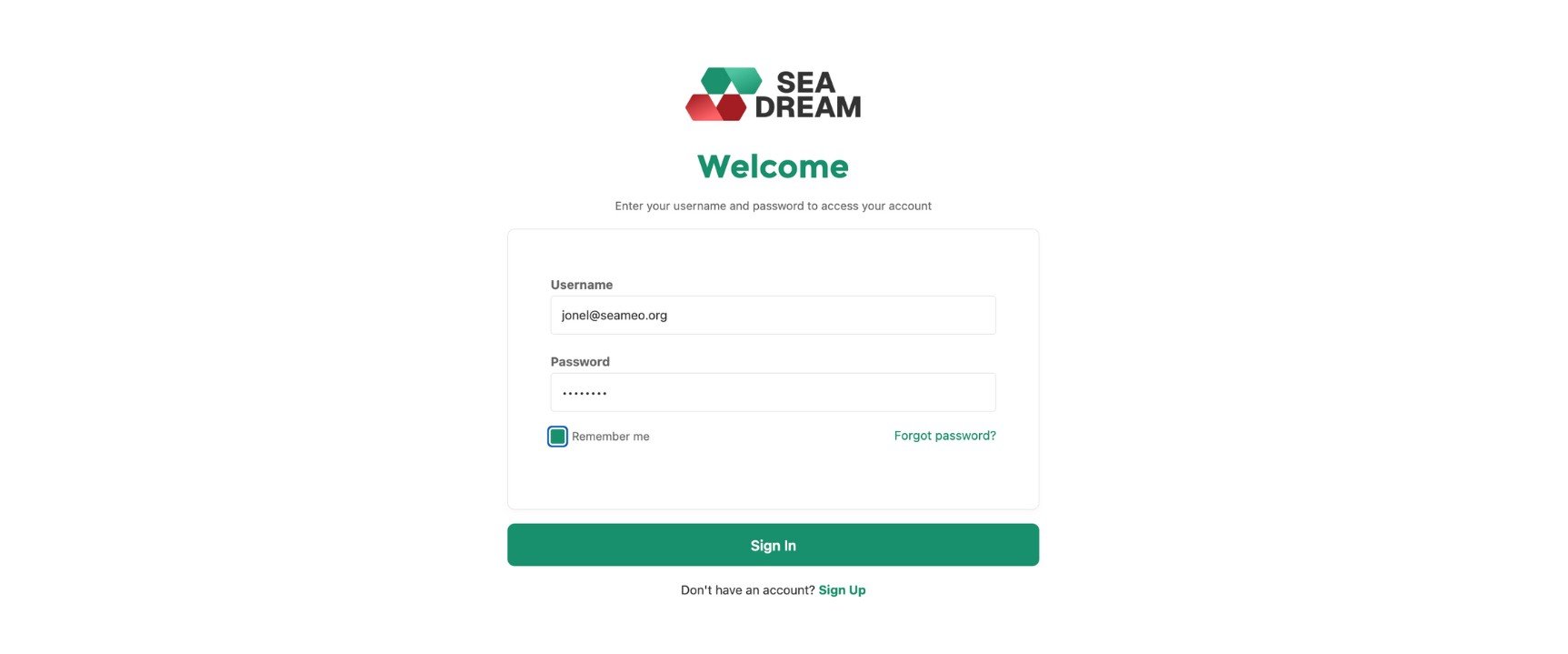
Fill in your email and Password and click “Sign In”.
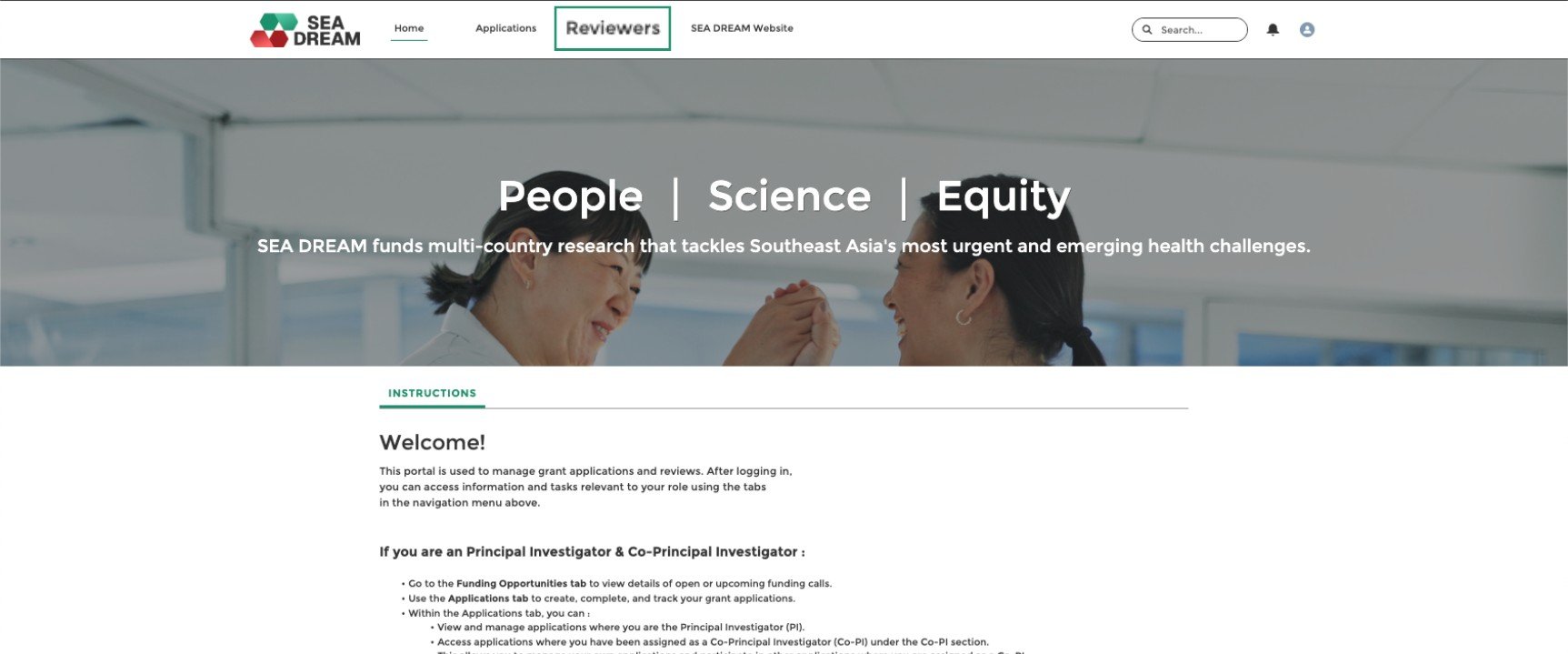
Reviewers Tab
Step 6
Open the email inbox and click the email with the subject “Invitation to Sign Up for SEA DREAM Application Portal.” Click the Sign up link in the email.
Step 7
Open the email inbox and click the email with the subject “Invitation to Sign Up for SEA DREAM Application Portal.” Click the Sign up link in the email.
Step 8
Open the email inbox and click the email with the subject “Invitation to Sign Up for SEA DREAM Application Portal.” Click the Sign up link in the email.
RO Approval
Step 9
You will receive approval request notifications via portal and email.
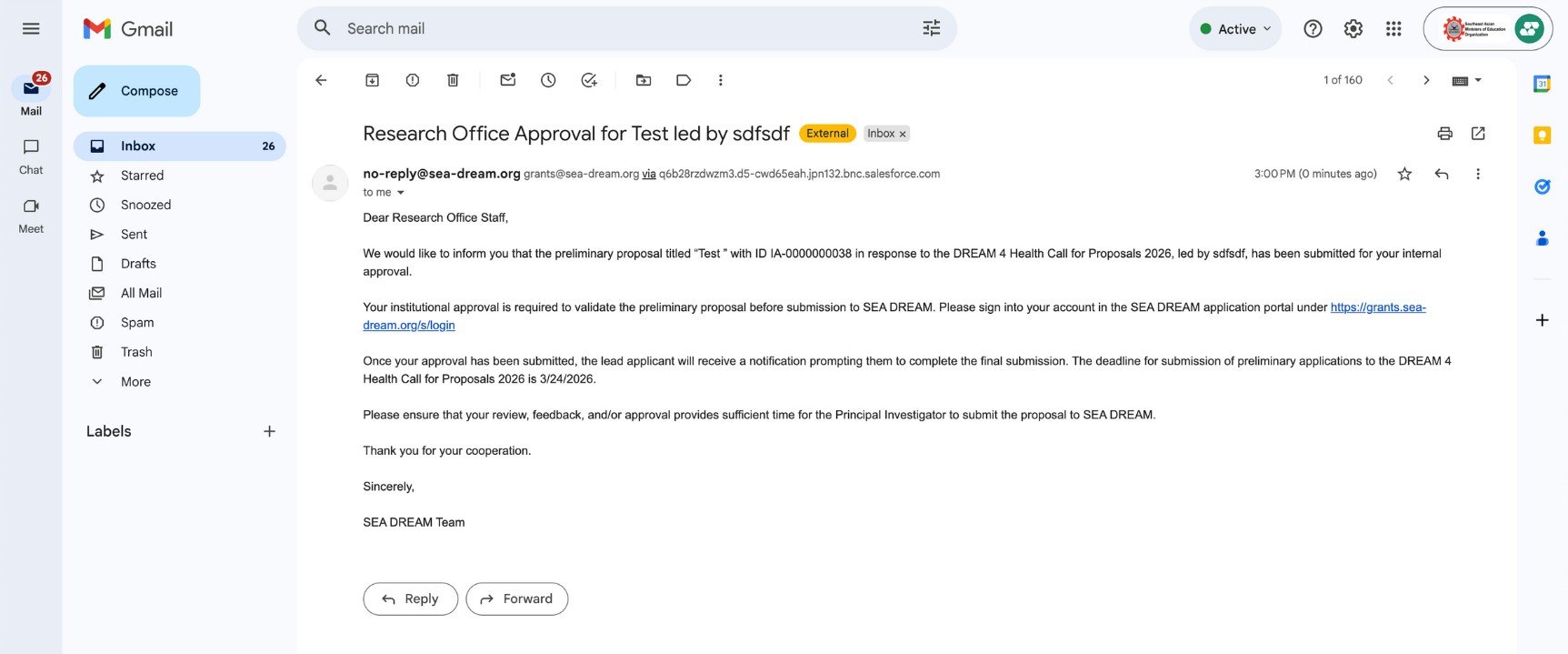
Step 10
To approve a request there are two ways to access:
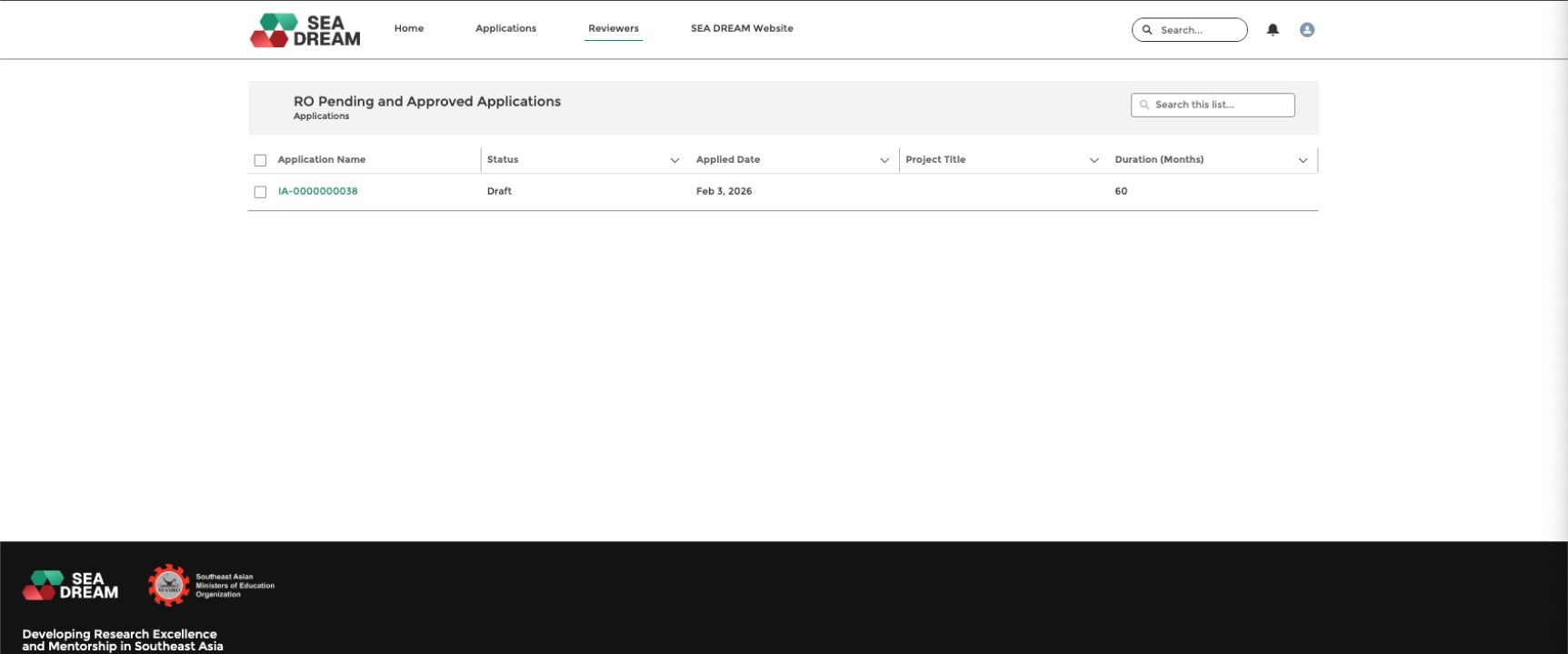
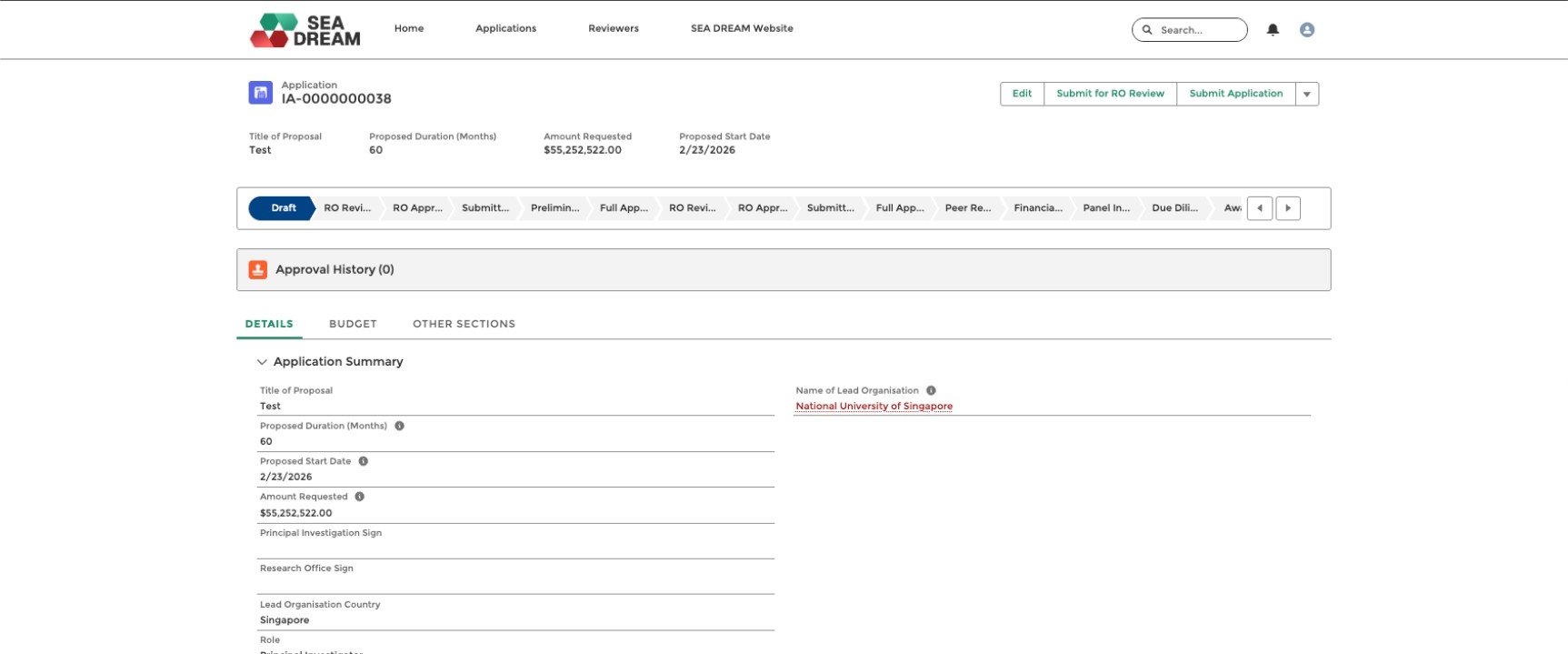
(a) Click portal notifications, then the system will open the approval page or (b) from Reviewers Page. Go to “Approval History” and click the “RO_Review”.
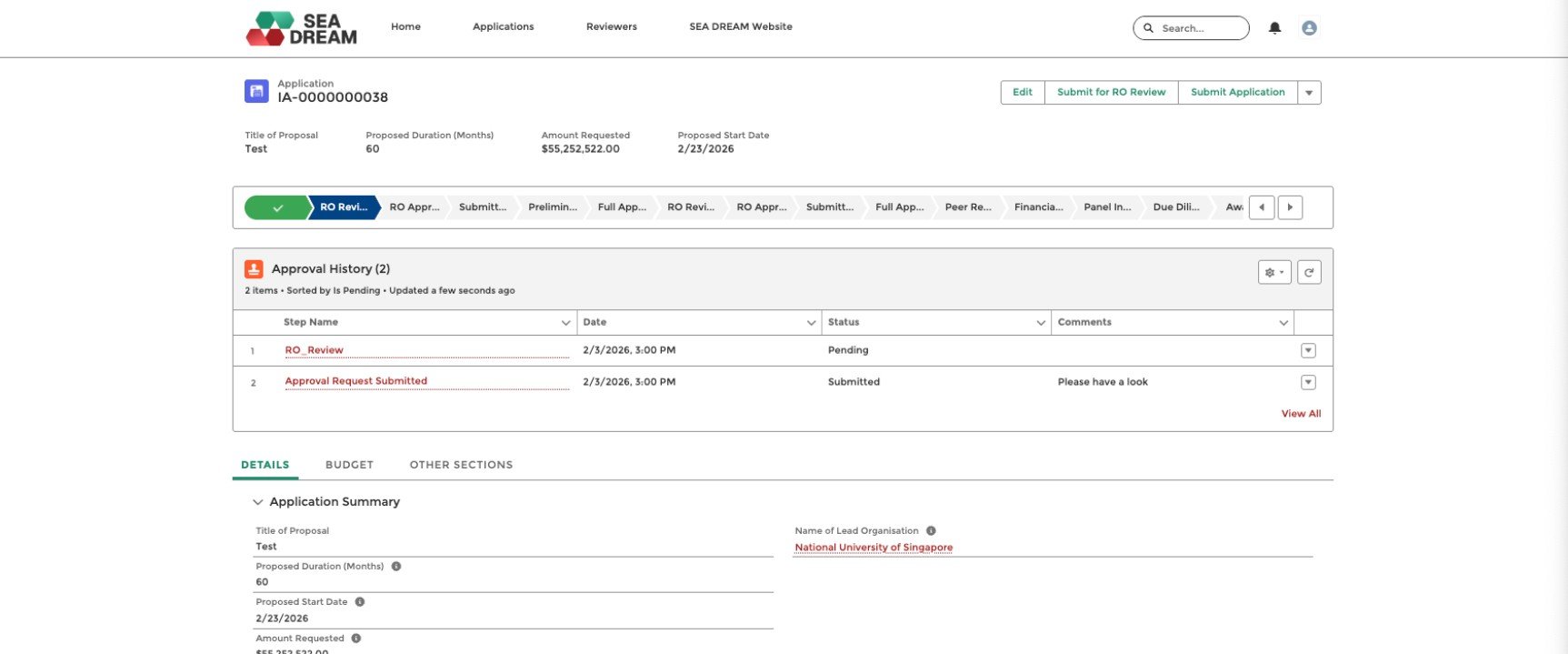
Step 11
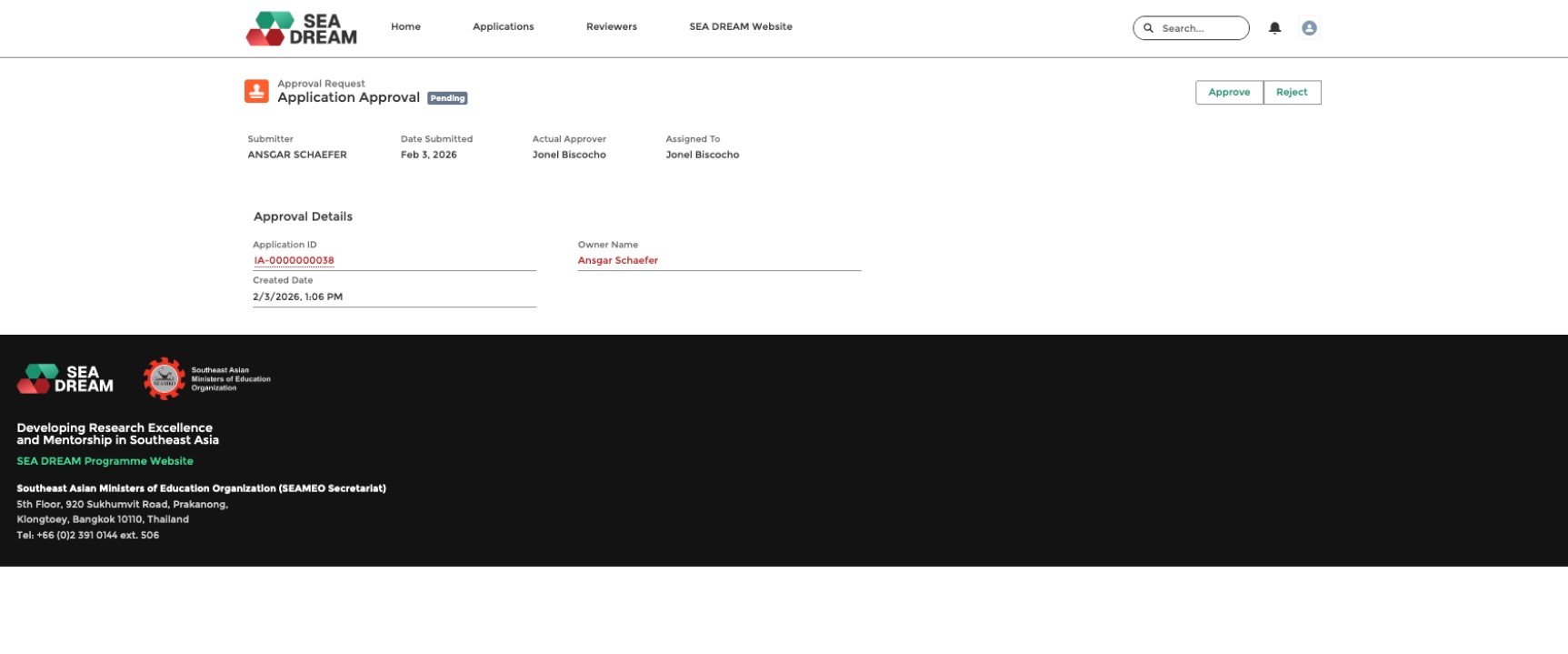
From either screen, you can click “Approve” or “Reject.”
- If you would like to send the application back to the PI, click “Reject,” and add a comment instructing the PI on how to improve or correct any issues with the application before asking for the RO to review it again.
- After the approver clicks “Approve” or “Reject,” the system will send a notification to inform the PI of the result of the review.
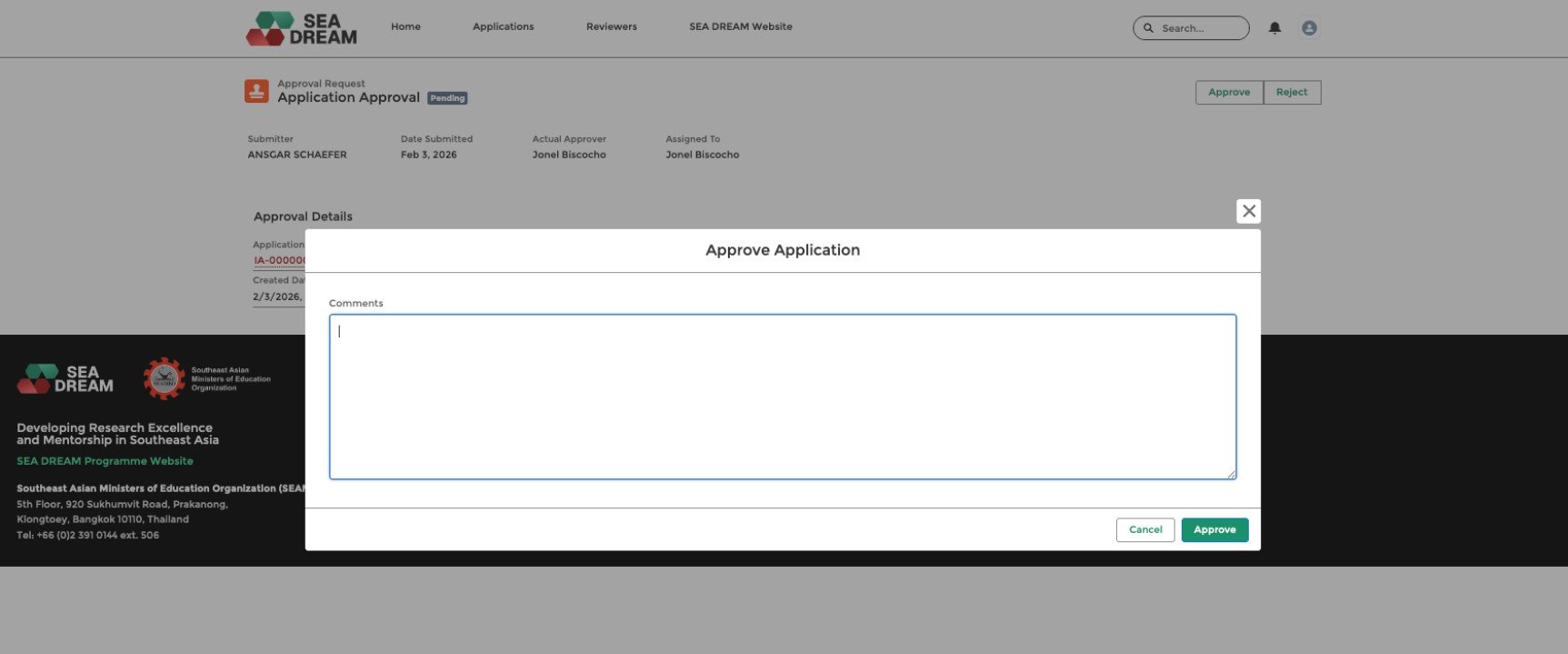
Step 12
The Research Office could provide further details in the comment for approving or disapproving proposals.
- Approved Result
- Portal Notification
- Email notification
- Rejected Result
- Portal Notification
- Email notification
Note: In case that the RO user clicks “Reject”, the applicant will update the application and re-submit for RO review again. And users can see the comments in the “Approval History” section of the Application.

Get In Touch
Subscribe To
Our Newsletter
Stay up to date with our latest funding,
news, events, and announcements.